A file explorer built for real project work
ControlFile Explorer finds, organises, and versions the folders you care about — faster than Windows File Explorer, with tools default Explorer never ships.
See the app before you download
One large view at a time — use Next / Prev, or let it auto-advance every 5 seconds. Click an image to zoom.
How it works — 4 steps
You do not need to learn everything on day one. Follow this path.
Install & open
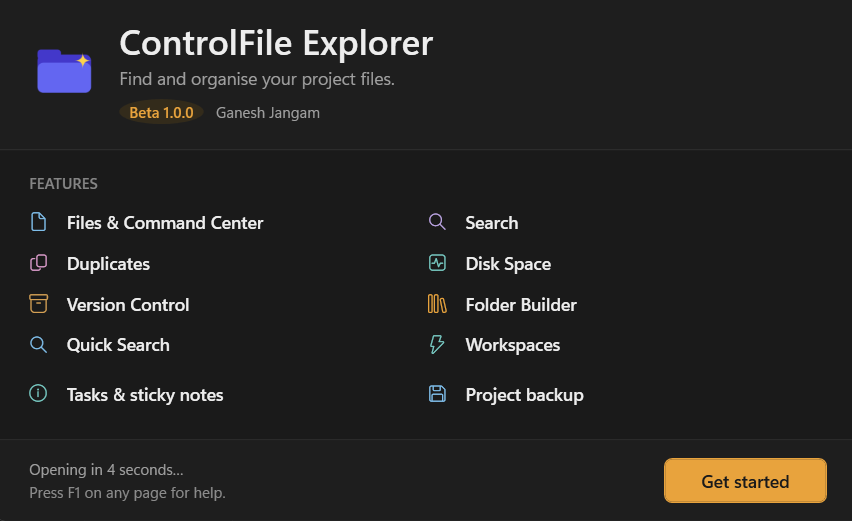
Run the setup EXE. On first launch, the welcome screen lists the main tools — click Get started.
Add your folders
In Settings → Indexing, add the project folders you care about. Rebuild once. Search stays fast because it only watches what you pick.
Search or browse
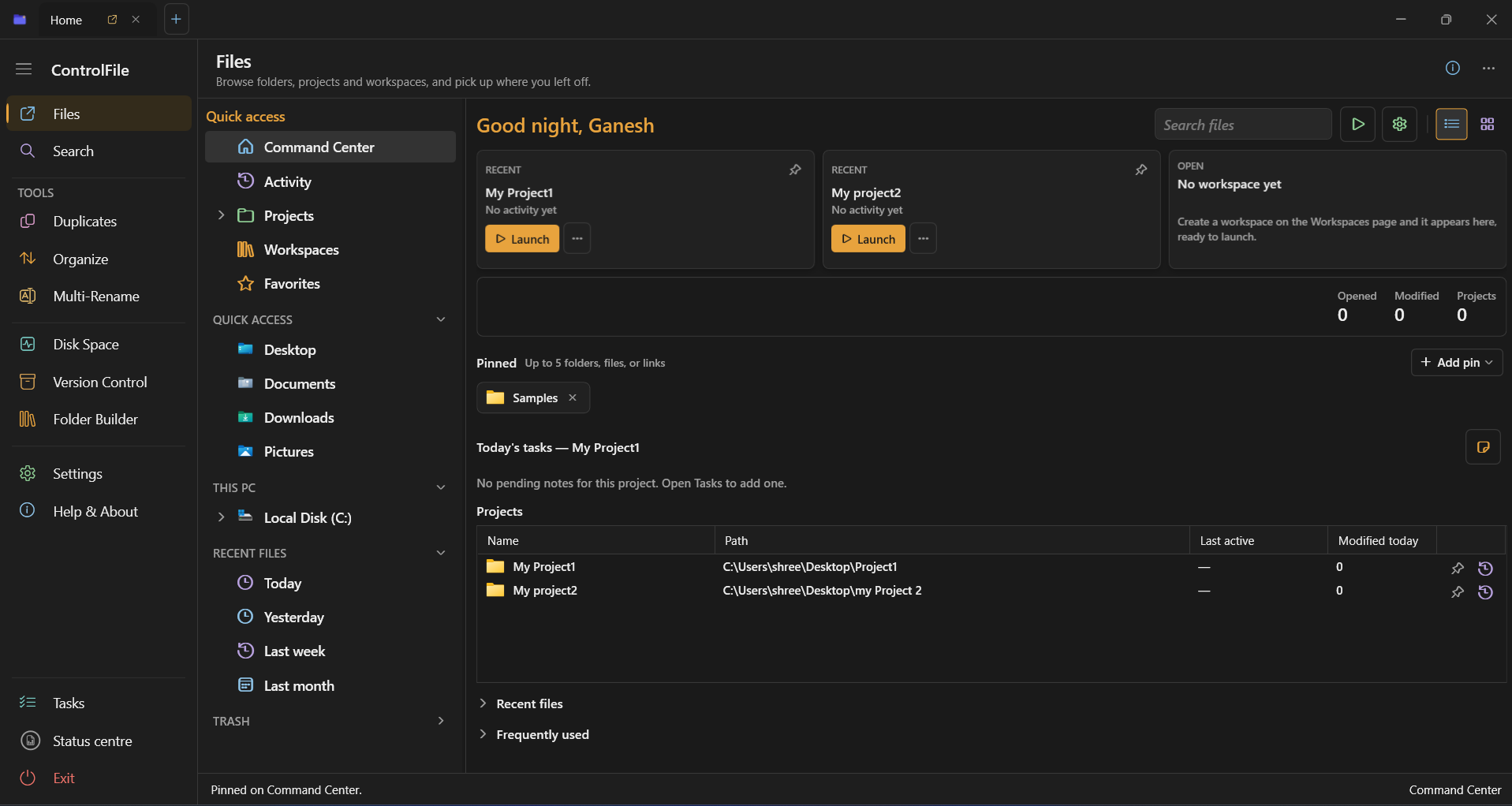
Use Search for instant find, or Files → Command Center to launch projects. Press Ctrl+Alt+Space for Quick Search over any window.
Use tools when needed
Duplicates, Disk Space, Organize, Versions, Folder Builder — each has a clear screen with its own steps. Press F1 for short help on any page.
Features that go far beyond File Explorer
Browse like Explorer — then use search, versions, duplicates, workspaces, and cleanup tools built for project folders.
Files & Command Center
Project cards, pins, sessions, and continue-where-you-left-off.
Instant Search
Local name index with filters like ext:, date:, size:, tag:.
Quick Search
Overlay anywhere with Ctrl+Alt+Space. Copy path with Ctrl+Enter.
Version Control
Save versions when you choose. Restore files or folders safely.
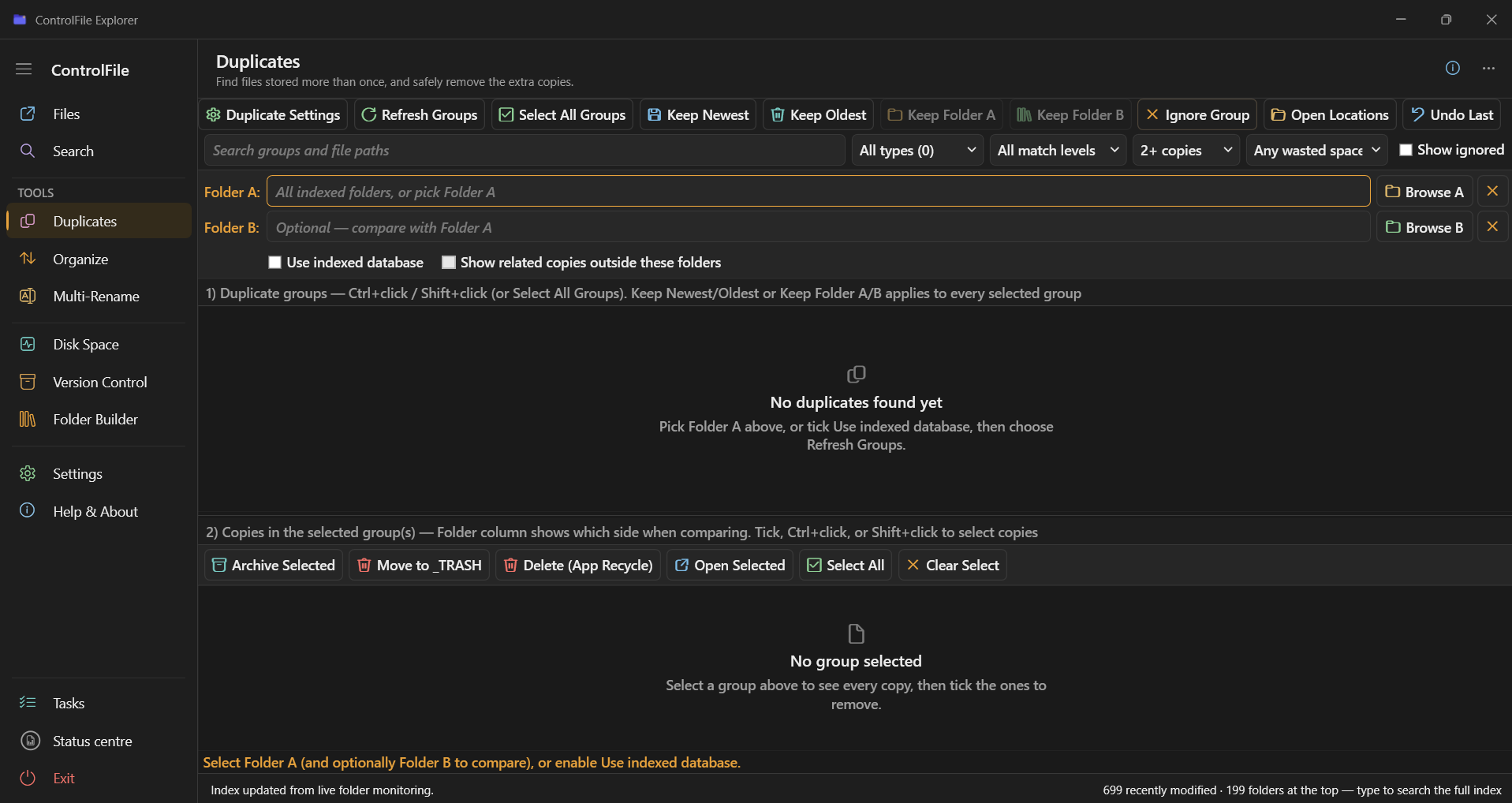
Duplicates
Name+size groups, Exact SHA-256, keep newest, archive or trash.
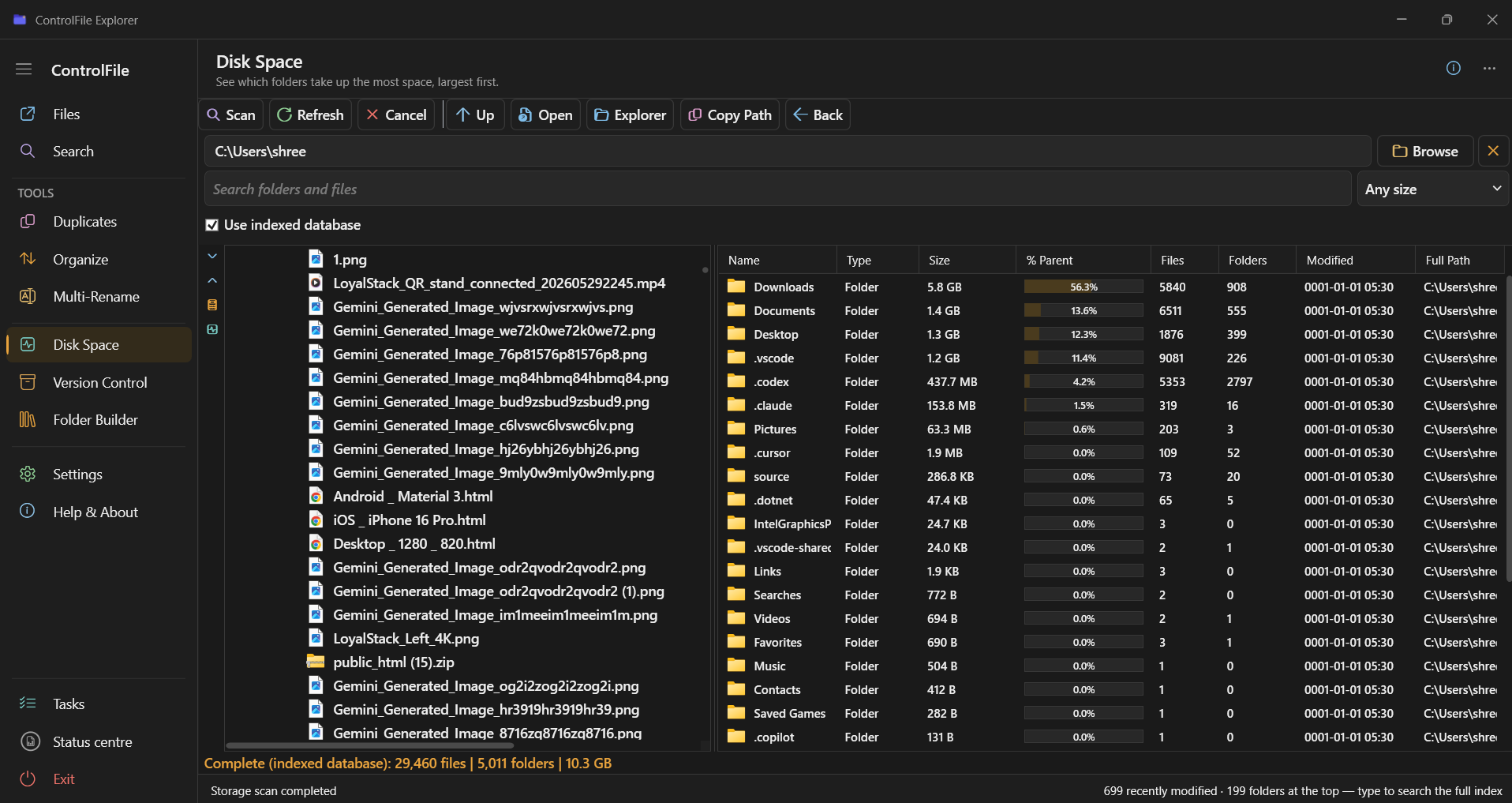
Disk Space
TreeSize-style sizes from the index or a live folder scan.
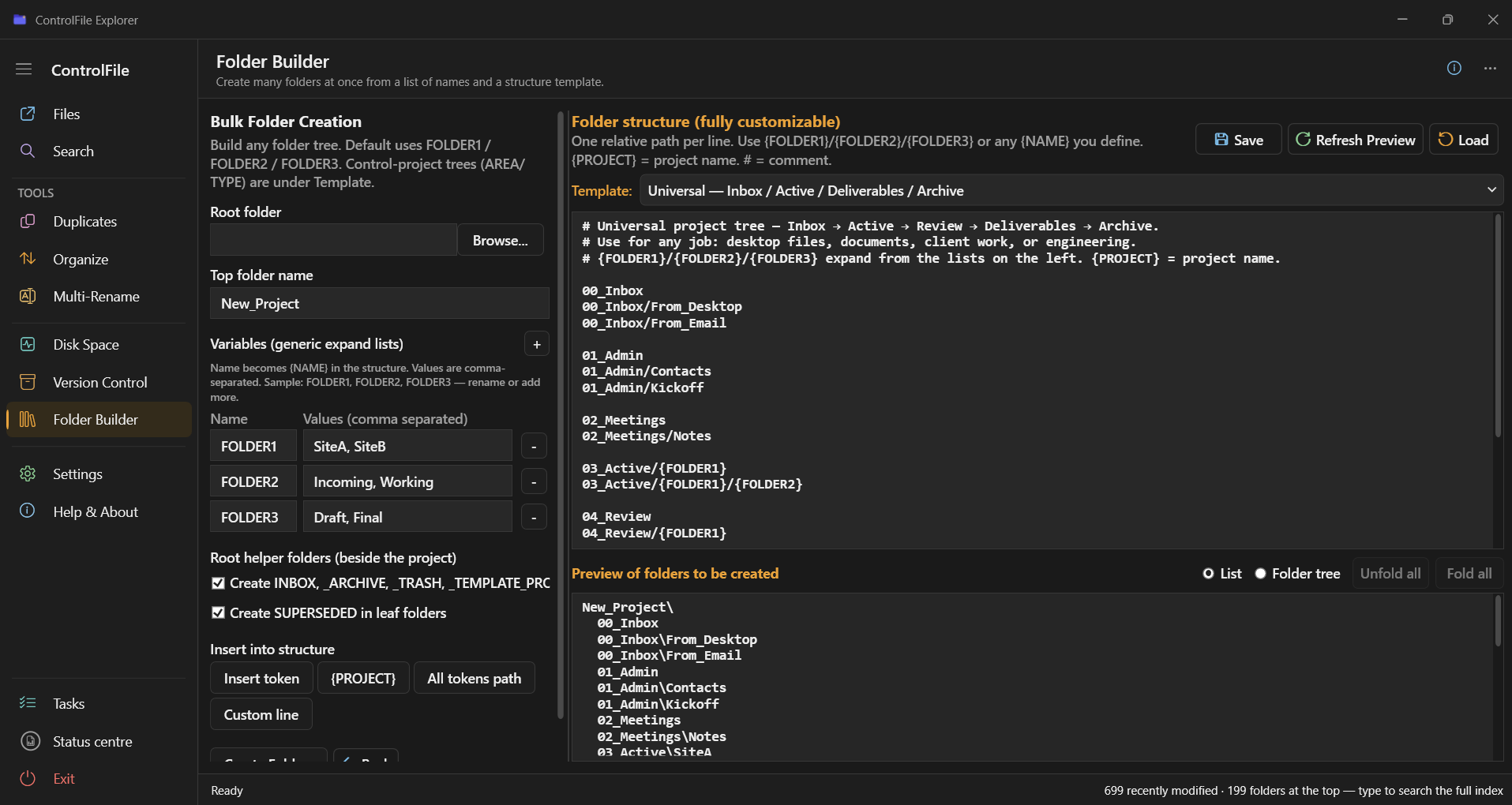
Folder Builder
Create bulk folder trees from variables and templates.
Workspaces
Launch a job: folders, apps, links, and Remote Desktop together.
Tasks & notes
Sticky notes with pin, pop-out, and file or RDP links.
Project backup
Copy project folders to a dated destination — originals stay put.
Simple steps for each tool
Pick a tab. Read the short steps. Match them to the real screenshot on the right.
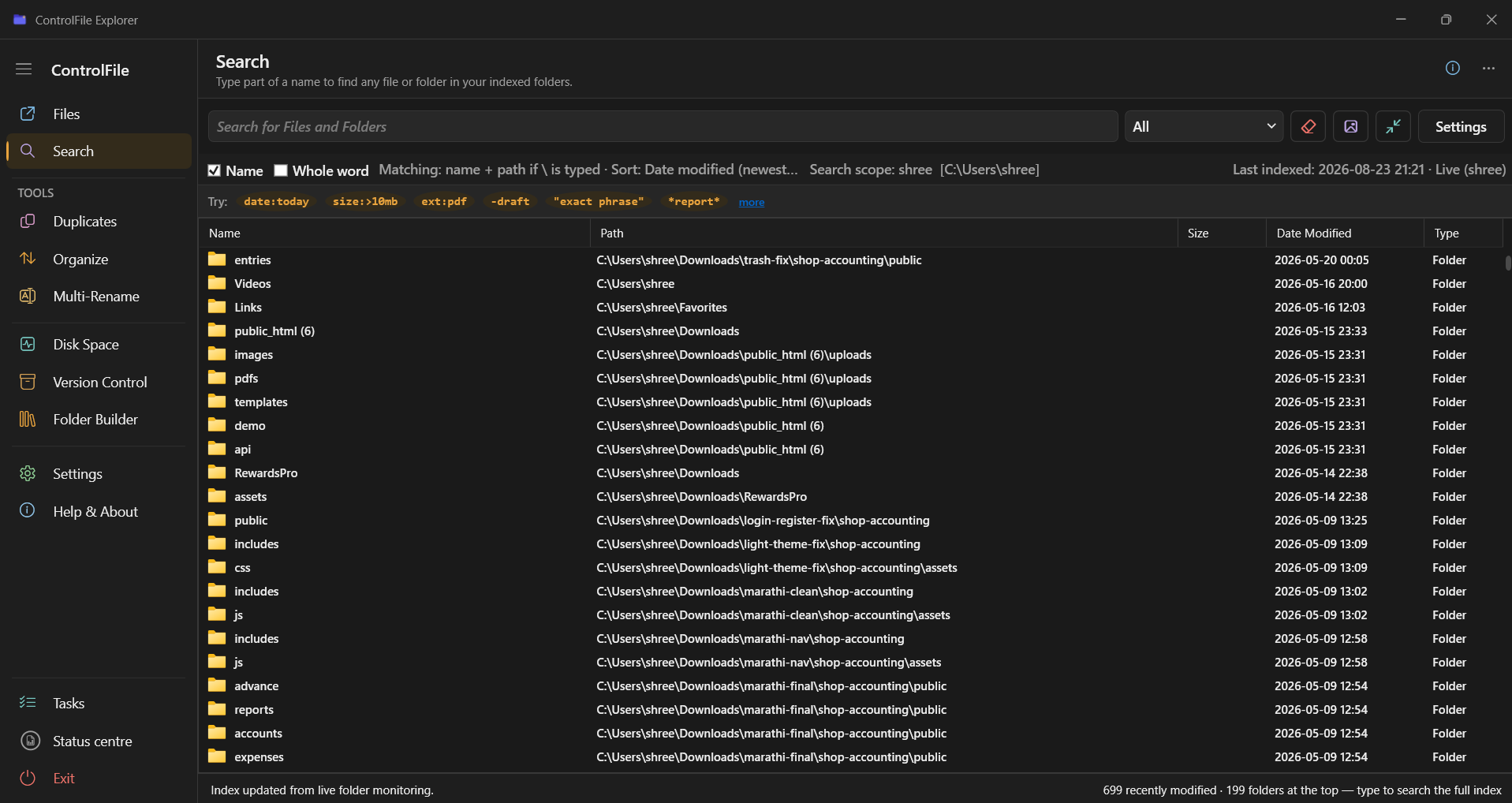
Find any file fast
Search uses a local index of the folders you add — not a slow walk of the whole disk every time.
- 1Add folders in Settings → Indexing, then Rebuild once.
- 2Open Search and type a name — or click a Try filter like ext:pdf.
- 3Double-click a result to open, or right-click for Preview / Open path.
- 4Anytime: Ctrl+Alt+Space opens Quick Search over other apps.
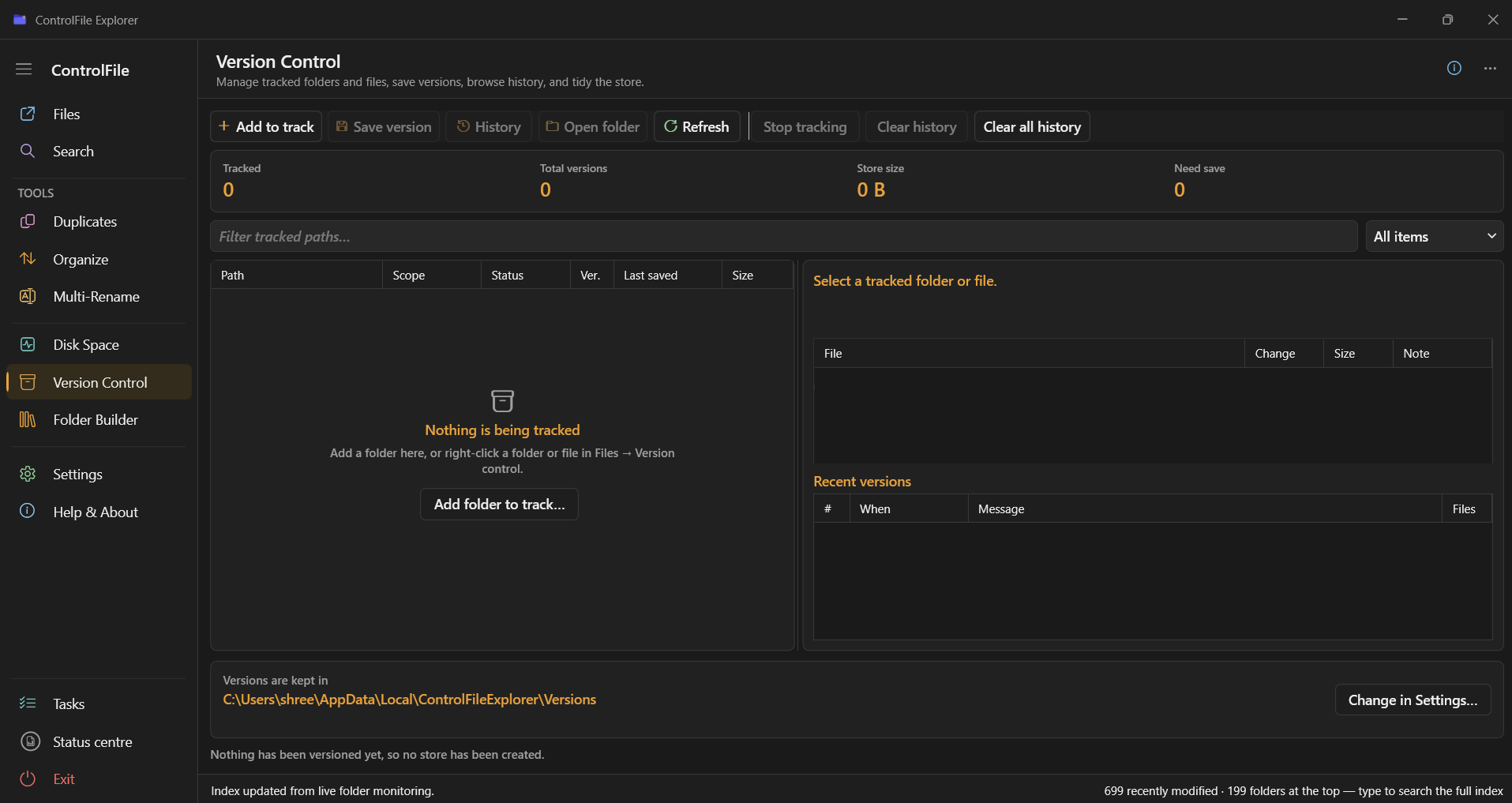
Save versions when you want
Nothing is recorded automatically. You save a version when the work is done — then restore later if needed.
- 1Add to track a folder or file (or right-click in Files → Version control).
- 2After edits, click Save version and add a short note.
- 3Open History to browse older versions.
- 4Restore one file or the whole snapshot — a safety backup is saved first.
Remove extra copies safely
Find files stored more than once, then keep one copy and archive or trash the rest.
- 1Browse Folder A (and optional Folder B), or tick Use indexed database.
- 2Click Refresh Groups — Step 1 lists duplicate groups.
- 3Select a group — Step 2 shows every copy.
- 4Use Keep Newest / Archive / Move to _TRASH. Undo is available.
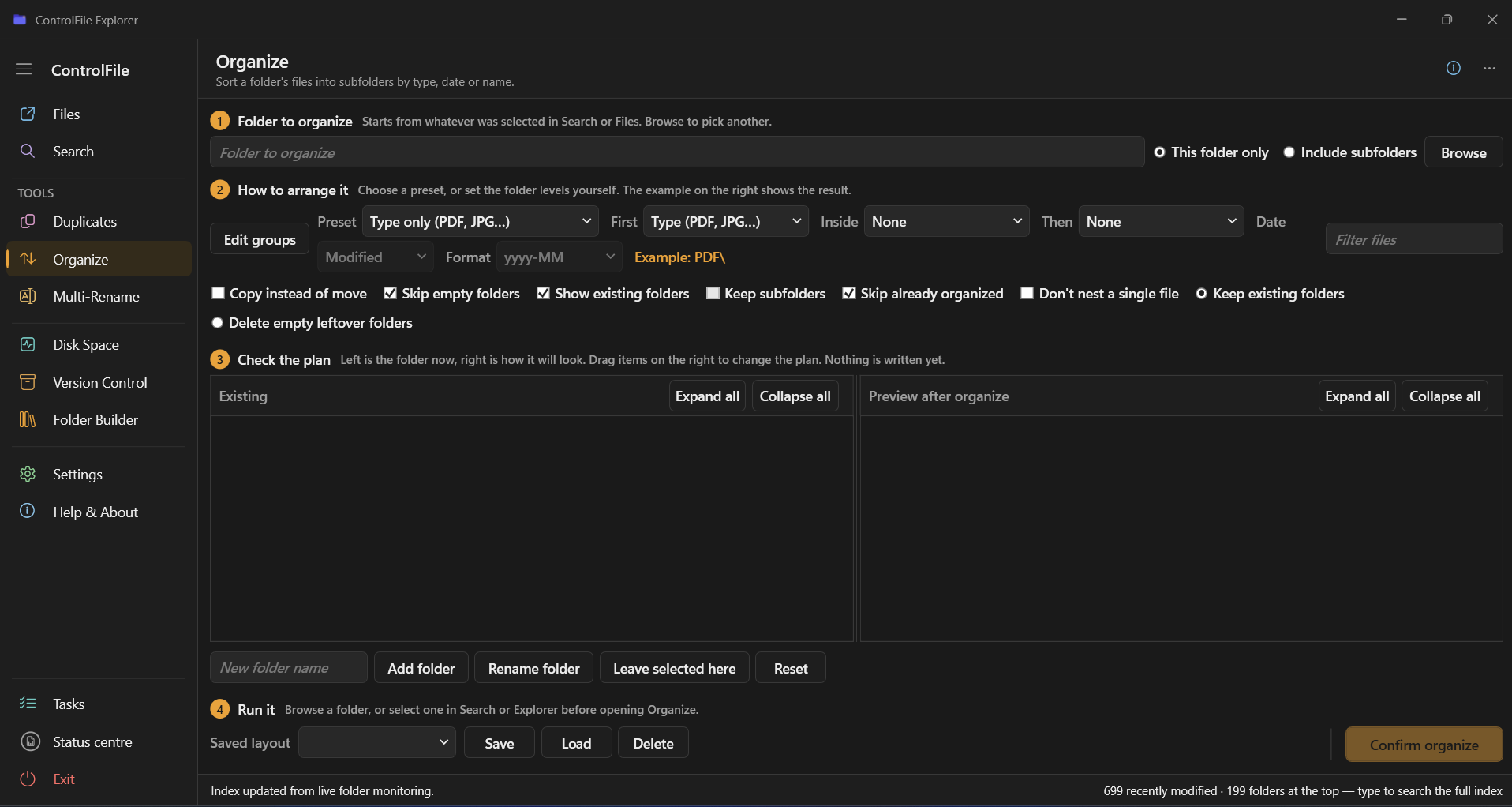
Tidy a folder in four steps
Sort files into subfolders by type, date, or name — with a preview before anything moves.
- 1Browse the folder to organise.
- 2Choose how to arrange — e.g. type only, or month then type.
- 3Check the plan — Existing vs Preview side by side.
- 4Click Confirm organize (or save the layout to reuse later).
See what fills the disk
Largest folders first, with % of parent bars — like TreeSize, built into the app.
- 1Pick a path (or use the indexed database for speed).
- 2Click Scan — results sort by size.
- 3Open a folder row to drill down into big items.
- 4Copy path, open in Explorer, or clean up from here.
Build a project tree once
Create many folders from variables and a structure list — instead of making them one by one.
- 1Choose the root folder and top project name.
- 2Fill variables (e.g. SiteA, SiteB) and edit the structure lines.
- 3Click Refresh Preview — see the folder tree first.
- 4Create folders when the preview looks right.
Better than default Windows File Explorer — for project people
File Explorer is fine for casual browsing. CFE is built when you live in project trees all day.
Instant project search
Index your folders once. Results appear as you type — not after walking the disk on every query.
Versions you control
Save a snapshot when the work is done. Roll back Excel, Word, or text with real compare — Explorer has no equivalent.
Multi-folder clipboard
Collect files from many places with Ctrl+Shift+C, then paste what you need. Windows clipboard cannot do this for files.
Tags that stick
Tags and notes stay with the file when you rename or move it — without writing into the file or alternate data streams.
Cleanup built in
Duplicates, disk space, and bulk folder creation — tools people usually buy separately — inside one local app.
Private by design
No account, no upload. Your index, versions, and notes stay on your machine (or portable next to the EXE).
ControlFile Explorer vs Windows File Explorer
Same familiar browse experience — plus the project tools Explorer leaves out.
| Capability | Windows File Explorer | ControlFile Explorer |
|---|---|---|
| Browse folders, tabs, path bar | Yes | Yes |
| Instant search over chosen project folders | Windows Search (broad, slower) | Local index + filters |
| Global overlay search (any window) | No | Ctrl+Alt+Space |
| Manual file/folder version history + restore | No | Yes + Excel/Word compare |
| Multi-folder file clipboard | One copy set at a time | Ctrl+Shift+C / V |
| Tags & notes without touching the file | No | Yes, follow rename/move |
| Duplicate finder + disk space map | No | Built in |
| Workspace launch (apps, RDP, links) | No | Yes |
| Cloud account required | Optional Microsoft account | Never — fully local |
Download ControlFile Explorer for Windows
Download ControlFileExplorer-Setup-1.0.0-beta.exe, run the setup, and you’re ready. App data is stored under your LocalAppData folder.
- Windows 10 or 11, 64-bit
- .NET 8 Desktop Runtime x64 (install if prompted)
- No admin rights required
- Beta 1.0.0 — by Ganesh Jangam
Unlock pro features
Search of an existing index is free. A licence unlocks indexing, version control, duplicates, disk space, folder builder, and file-change actions (copy, organise, rename, and more).
Activate in-app under Help & About → License, then message us with your request key.
WhatsApp for a licence